- November 13, 2026
- AI Search Optimization
- Comments : 0
How to Claim Your Business in ChatGPT
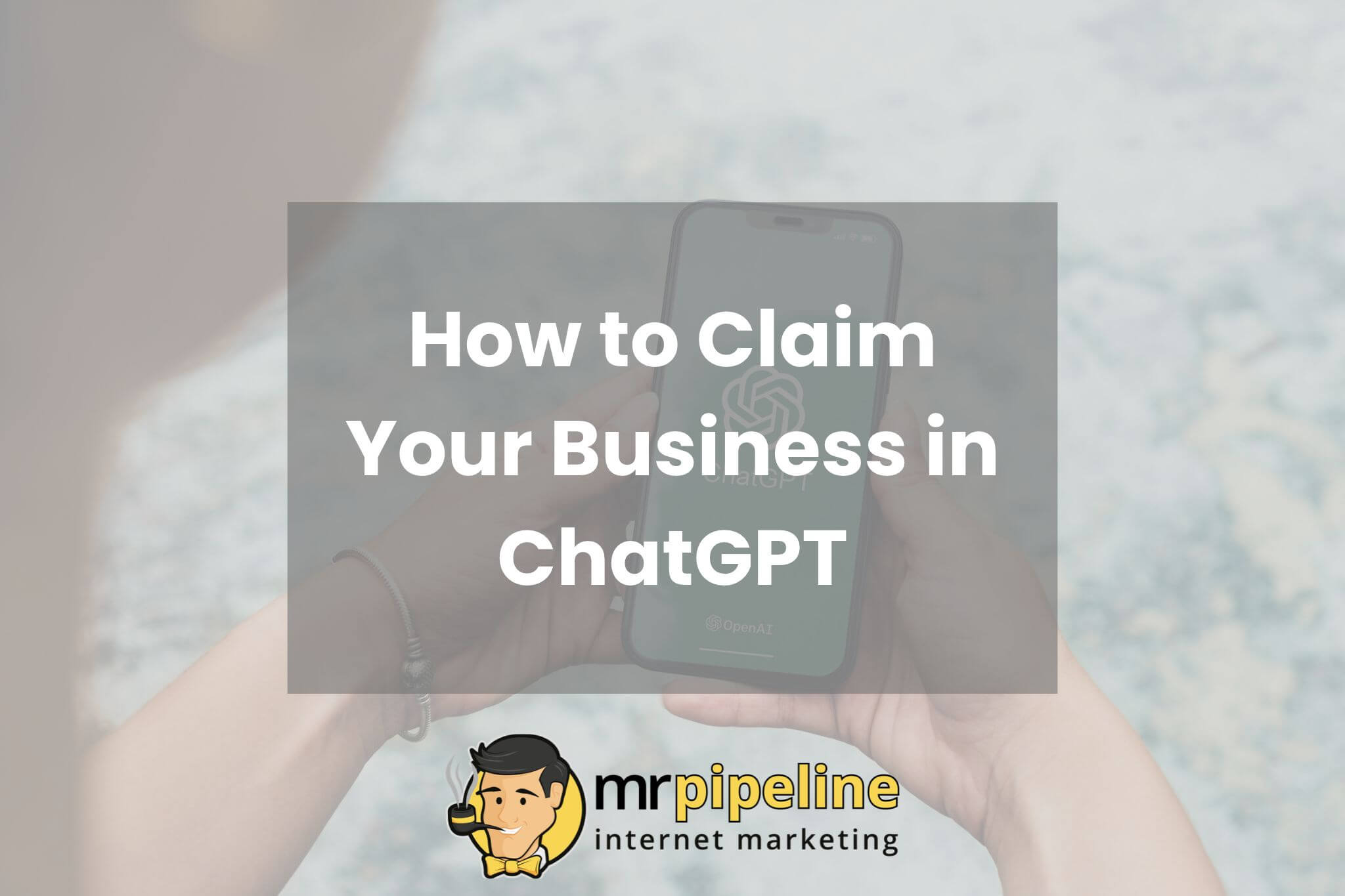
OpenAI launched Businesses in ChatGPT in beta on November 10, 2026. Eligible business owners and authorized representatives can now use Business Hub to claim their business and submit updates.
A ChatGPT business profile is a listing people can open when your business appears in an answer. It can include your website, a short description, and details about what you offer.
Who Can Claim a Business in ChatGPT?
You can claim an eligible business if you own it or have permission to represent it. Eligibility depends on your business type, location, and the verification options available to you.
If you run a plumbing, roofing, or other home service company, start by checking whether your business already appears in Business Hub. Eligible online businesses may see an option to add a profile if there’s no match.
What to Have Ready Before You Start
Make sure you can access the account and contact details you plan to use. Keep your official business records handy in case OpenAI asks for them.
- A ChatGPT account you’ll keep. Use an account the owner plans to keep long term, ideally with a business email. The person who claims the profile becomes its admin and can add teammates or grant agency access later.
- Your website address, if you have one. Keep it handy for your profile. If you choose website domain verification, you’ll need access to your domain’s DNS settings. OpenAI also offers other ways to verify some listings.
- Access to one verification method. Have access to the phone number shown on the listing, the associated business email, or your domain’s DNS settings. The phone must be able to receive a text or an automated call. Shopify merchants can connect their store if Business Hub offers that option.
- Photo ID and proof of authorization, if requested. Persona may ask for a government-issued photo ID. If you’re claiming the profile on someone else’s behalf, be ready to show that you can represent the business.
- Business registration or tax details, if requested. Use the number the form asks for. In Florida, your Sunbiz document number identifies your state registration. Your EIN is a separate federal tax ID.
- Accurate business records. Use the legal name, address, and registration or tax number shown on your official records when the form asks for them. If you trade under a different name, keep that name handy too.
- Authority to accept OpenAI’s terms. Make sure the person claiming the listing can agree to the terms on the company’s behalf.
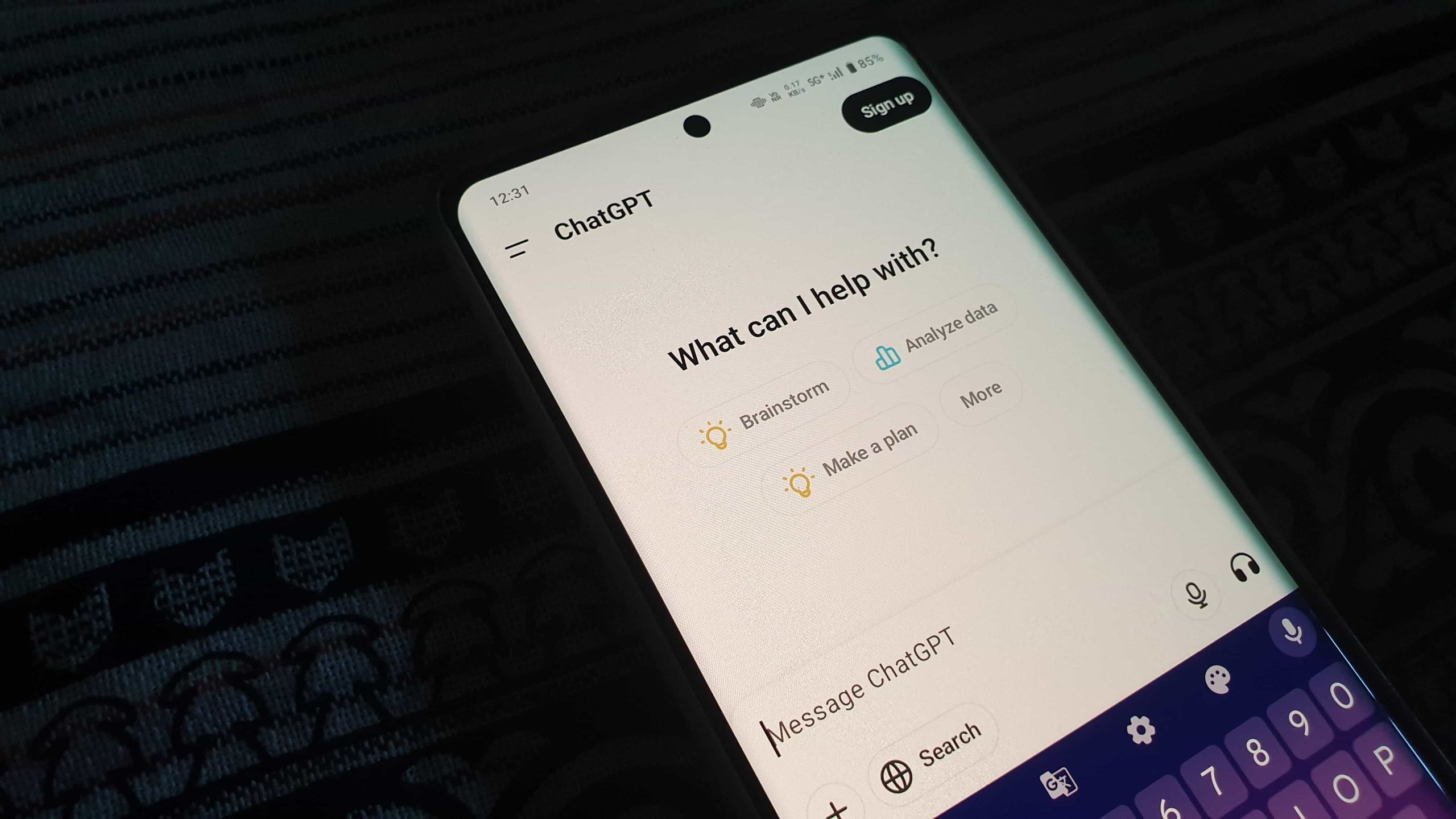
How to Claim and Verify Your Business on ChatGPT
Follow these seven steps to claim an existing listing. If Business Hub offers to create a new profile, follow the prompts for that path. If you create a new profile through Persona, OpenAI publishes it when it approves your verification.
Step 1. Open ChatGPT Business Hub
Visit chatgpt.com/business-hub, sign in, and search for your business by name.
Step 2. Find and Select Your Business
Choose the listing that matches your business. Confirm which ChatGPT account you’ll use to manage it.
Step 3. Verify Your Connection to the Business
Choose one of the methods Business Hub offers. Available options depend on your business.
- Business phone. Receive a code by text message or automated call at the number shown.
- Business email. Receive a code at the email address linked to your business.
- Website domain. Add the TXT record provided to your domain’s DNS settings, then return to Business Hub to verify it.
- Shopify store. Connect the Shopify store for the business you’re claiming and follow the prompts.
Step 4. Wait for OpenAI to Review Your Claim
OpenAI reviews your claim and emails you with a decision or a request for more information. Once your claim is approved, you can access your profile in Business Hub.
Step 5. Complete Identity Verification Through Persona
Open your business profile in Business Hub. In the business overview, find Complete verification with Persona, select Verify, and follow the prompts. Persona may ask for photo ID, business registration details, or proof that you’re authorized to represent the business.
Step 6. Wait for Identity Verification Approval
OpenAI reviews your Persona submission and emails you with its decision or a request for more information. Review times vary. Once approved, your profile gets a blue check, and you can submit profile updates and view available insights.
Step 7. Update Your Business Profile
Check the business name and the products or services shown. Update the fields Business Hub makes available, such as your website link, business description, product or service category, logo, and cover photo.
OpenAI reviews and publishes profile updates, so changes may take time to appear. ChatGPT may also use information from other sources. If you run a home service company, use your description to explain the work you do and the towns you serve.
Get Help With Local Search and AI Visibility
Keeping up with new AI search tools while running your daily operations takes serious time and technical focus. If you want local customers to find your company first on ChatGPT, Google, and across the web, our team at Mr. Pipeline is ready to handle the heavy lifting for you. Call Mr. Pipeline today at (561) 899-3043 to get your business verified, optimized, and growing!